

Creating Your own Kubernetes Cluster on Proxmox VE using Terraform
We hear more and more about Kubernetes (or K8s) in the DevOps world and I’ve been using it in Azure (AKS) and AWS (EKS) as well as on OpenShift in my various jobs.
Not too long ago, a friend told me about Proxmox and how he used it instead of VMWare ESX (which I use as of today on my OVH servers)
I didn’t really have time to get into it but I saw that it looked promising and was free AND that OVH even supported it as an OS install.
To get a Kubernetes cluster installed, it takes quite a few steps and even though I could have just done it and forgot it, I wanted to be able to start over from scratch so I decided to go down the Terraform road as well.
What is Proxmox?
Proxmox is a virtualization OS and from their website, we can read the following…
Proxmox VE is a complete open-source platform for enterprise virtualization. With the built-in web interface you can easily manage VMs and containers, software-defined storage and networking, high-availability clustering, and multiple out-of-the-box tools on a single solution.
By combining two virtualization technologies on a single platform, Proxmox VE is giving maximum flexibility to your production environment. Use KVM full virtualization for Windows and Linux images, and lightweight containers to run conflict-free Linux applications.
From https://www.proxmox.com/en/proxmox-ve
Basically, it’s an OS you install and then you can create VMs within it.
Of course, it has many other features which we won’t get into here but it’s worth noting that since version 6, it is a type 1 Hypervisor, meaning that it doesn’t require a base OS to exist (although it does support type 2 where you install Ubuntu first) which really means better performance.
What is Terraform?
Terraform is a tool that allows you to use code to create your infrastructure.
Similar to Ansible, Puppet or Chef, it allows you to create files that define your infrastructure such as disk space, cpus or ram along with the operating system configuration.
Terraform is an open-source infrastructure as code software tool that provides a consistent CLI workflow to manage hundreds of cloud services. Terraform codifies cloud APIs into declarative configuration files.
From https://www.terraform.io/
With Terraform, the integration with the virtualization platform is tighter and some say is cleaner to implement.
I’m still learning it, so I’ll reserve my vote for later.
What is Kubernetes?
Last but not least is the self healing, scalable, container management solution called Kubernetes.
I won’t go into much detail here except to say that it’s the future, so I need it!
You can read up on it at https://kubernetes.io/
Steps overview
This is basically what I did:
- Install Proxmox on an old PC
- Create a template VM using qm cli commands
- Use Terraform to create 5 VMs for my cluster
- Setup the Kubernetes cluster with kubeadm
Obviously, these steps were all pretty complicated.
All in all, it took me about 2 weeks to get this all working and automated.
I mean, it took me a day to get 4 VMs created in Proxmox VE and setup the first cluster but I messed it up so bad I had to restart and wanted to create scripts to automate it.
My plan is to end with a process that allows me to go from new Proxmox VE install on hardware to a working Kubernetes cluster in a few minutes, just like you can with AKS or EKS because I will be wanting to create multiple clusters.
My hardware
First, let’s say I don’t have the best hardware for this. I just used an old AMD Ryzen 3 3.2GHz, 4 core CPU PC with 8G of RAM (which I then upgraded to 64G RAM).
As for disk, I just have a 500G SSD and added 2 8Tb external USB disks – nothing that I’d suggest for production but in the end, this was just to learn.
On OVH cloud, I have 4 systems all with 4c/8t CPUs and 64G of RAM but they are running VMWare ESX which I will want to replace with Proxmox as soon as I got all this figured out.
BTW, I’m writing this blog while I’m finalizing the steps.
Let’s get going.
Installing Proxmox VE
Versions will change but the process should remain relatively similar I hope.
First, you’ll need to download the ISO from https://proxmox.com/en/downloads/category/iso-images-pve
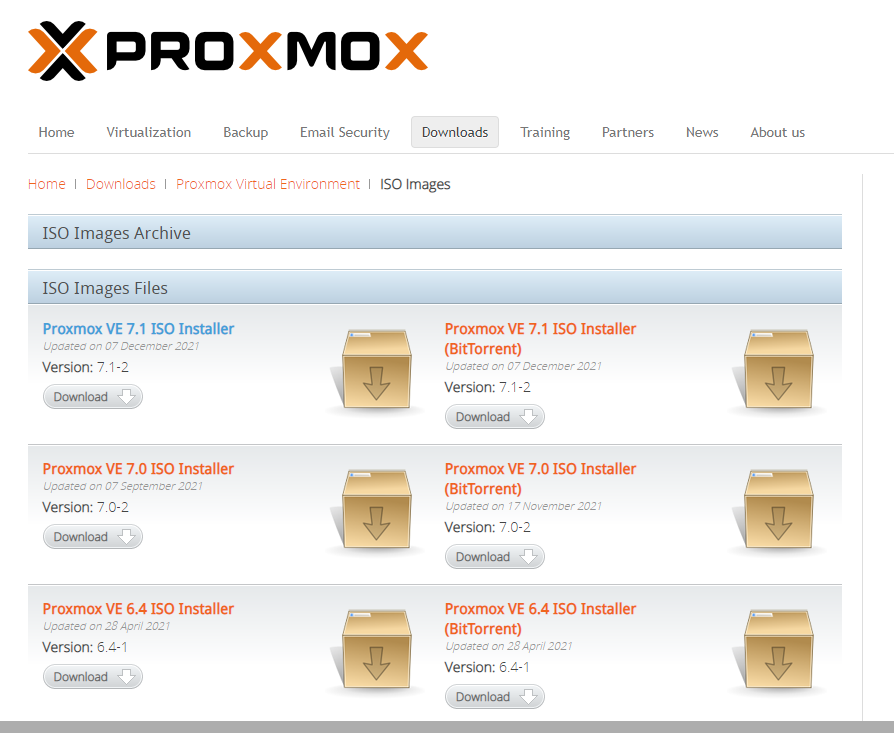
Then, you’ll need to burn a DVD to boot from.
The installation was un-eventful and simple and will be hopefully for you as well.
Keep in mind the base of Proxmox is Ubuntu, so package updates are done with apt for example.
You need to keep in mind the name you give the host will be the node name in the Proxmox cluster (once you have more than one)
Creating VMs for your Kubernetes cluster
The first thing I did was install Ubuntu on a VM, configure it and then clone it.
BUT, I found out later that this was not be best way to do it and if I wanted to automate the creation of VMs, it would be much better to use cloud-init based images.
Creating cloud-init VM templates
So, after spending 4 days figuring out how to create VMs, setup Kubernetes nodes and the cluster, I looked at trying to automate the process with Terraform.
Everything I found online talked about these cloud-init images and that took me a few days to wrap my head around too.
In any case, we are here now, and I’ll give you the end result instructions and spare you all the drama.
I found much of this from blog post https://austinsnerdythings.com/2021/08/30/how-to-create-a-proxmox-ubuntu-cloud-init-image/
Here’s the script I used to create my base image. I ran this on the Proxmox host.
#!/bin/bash

# Just a wrapper to see commands being run
Run() {
        echo "`date`:$@"
       "$@"
}


# configure as needed
ID=90000
STORE=ext8tb1

RAM=1024
CORES=1
CPUS=1
IPCIDR=192.168.2.12/24
GATEWAY=192.168.2.1

# get image from https://cloud-images.ubuntu.com/hirsute/current
# and use virt-customize to add qemu-guest-agent to it.
# For example:
#   wget https://cloud-images.ubuntu.com/hirsute/current/hirsute-server-cloudimg-amd64.img
#   apt-get install libguestfs-tools -y
#   cp hirsute-server-cloudimg-amd64.img hirsute-server-cloudimg-amd64-proxmox.img
#   sudo virt-customize -a hirsute-server-cloudimg-amd64-proxmox.img --install qemu-guest-agent

CLOUDIMAGE=hirsute-ubuntu-21.04-server-cloudimg-amd64-proxmox.img
DESCRIPTION="Ubuntu 21.04 cloud image"
NAME=ubuntu-2104-template

Run qm stop $ID
Run qm destroy $ID
Run qm create $ID -name $NAME \
   -memory $RAM \
   -net0 virtio,bridge=vmbr0 \
   -cores $CORES \
   -sockets 1 \
   -cpu cputype=kvm64 \
   -description "$DESCRIPTION" \
   -kvm 1 \
   -numa 1 || exit $?
Run qm importdisk $ID /isos/$CLOUDIMAGE $STORE || exit $?
Run qm set $ID -ide2 $STORE:cloudinit || exit $?
Run qm set $ID -scsihw virtio-scsi-pci -virtio0 $STORE:$ID/vm-$ID-disk-0.raw || exit $?
Run qm set $ID -boot c -bootdisk virtio0 || exit $?
Run qm set $ID -serial0 socket || exit $?
Run qm set $ID -agent 1 || exit $?
Run qm set $ID -hotplug disk,network,usb,memory,cpu || exit $?
Run qm set $ID -vcpus $CPUS || exit $?
Run qm set $ID -vga qxl || exit $?
Run qm set $ID -name $NAME || exit $?
Run qm set $ID -sshkey /root/.ssh/id_rsa.pub || exit $?
Run qm set $ID --ipconfig0 ip=$IPCIDR,gw=$GATEWAY

# Not sure why I need this but without it, the resize gives a timeout error
Run sleep 30
Run qm resize $ID virtio0 20G
Unfortunately, there seems to be a bug in ubuntu that fails to work on Proxmox, so the created VM is not usable to clone new VMs from yet.
I could surely do some work to automate this further but for now, I followed the steps outlines in another blog post I found https://www.burgundywall.com/post/using-cloud-init-to-set-static-ips-in-ubuntu-20-04
Which are basically:
- Power on my new VM1 (I called it ubuntu-2104-template)
- Run cloud-init clean and poweroff
- Convert VM1 to template
- Clone (full clone) VM1 template to new VM2 (I called it ubuntu2104-template)
- Power on VM2
- Run the below commands in VM2
- Convert to template
- VM2 template is now usable and cloud-init works as expected
Script to run in step #6 above:
sudo su -
# nic must have "old" name, eg. eth0 and not ens18
cat << EOF > /etc/udev/rules.d/70-persistent-net.rules
SUBSYSTEM=="net", ACTION=="add", DRIVERS=="?*", ATTR{dev_id}=="0x0", ATTR{type}=="1", NAME="eth0"
EOF

# this prevents network configuration from happening, says so right in the name
rm -f /etc/cloud/cloud.cfg.d/subiquity-disable-cloudinit-networking.cfg

# ConfigDrive needs to come first (I think)
cat << EOF > /etc/cloud/cloud.cfg.d/99-pve.cfg
datasource_list: [ConfigDrive, NoCloud]
EOF

# this is super important, netplan files are not regenerated if they exist
rm -f /etc/netplan/00-installer-config.yaml
rm -f /etc/netplan/50-cloud-init.yaml

cloud-init clean
poweroff
Using Terraform to create Kubernetes node VMs
In a Kubernetes cluster, you should have at least 4 nodes. One master and 3 slaves.
You can read up plenty more on that, but for prodution, you’d be looking as 2 or more masters and 4 or more slaves.
Note that you can also add nodes later on but my goal was to have a process to setup a Kubernetes cluster quickly.
I needed a base VM to quickly provision new VMs which is what I created the template cloud-init VM for.
Installing Terraform is quite simple so I’ll just let you follow them online for your OS.
Once installed, you’ll need to create a main.tf file in a new folder.
I got much of this from https://austinsnerdythings.com/2021/09/01/how-to-deploy-vms-in-proxmox-with-terraform/ and https://vectops.com/2020/05/provision-proxmox-vms-with-terraform-quick-and-easy/ but both had issues for me.
You’ll want to save this file in a new folder and call it main.tf
For example:
mkdir k8scluster
cd k8scluster
vi main.tf
You coud split it and use variables in other files, etc, but this will get you going.
Here’s my example main.tf file:
terraform {
  required_providers {
    proxmox = {
      source = "telmate/proxmox"
# there may be a newer version
      version = "2.9.4"
    }
  }
}

provider "proxmox" {
    # replace with your proxmox cluster host name or IP
    pm_api_url = "https://192.168.2.3:8006/api2/json"
    pm_user = "YOUR PROXMOX USER"
    pm_password = "YOUR PROXMOX PASSWORD"
    pm_tls_insecure = "true"
}

variable "ssh_key" {
  default = "PUT YOUR SSH KEY IN HERE"
}

resource "proxmox_vm_qemu" "proxmox_vm" {
# Set to 4 or 5 when ready to create real cluster
# set to 0 to delete the VMs to try again
  count             = 1
  name              = "k8snode-${count.index+1}"
  target_node       = "proxmox1" # change to the name of your proxmox node
  clone             = "ubuntu2104-template" # the name of your base template
  full_clone        = false # or set to true for a full clone
  os_type           = "cloud-init"
  cores             = 1
  sockets           = "1"
  cpu               = "host"
  # minium memory
  balloon           = 1024
  # maximum memory
  memory            = 4096
  agent             = 1
  scsihw            = "virtio-scsi-pci"
  bootdisk          = "virtio0"
 disk {
    slot = 0
    # set disk size here. leave it small for testing because expanding the disk takes time.
    size = "50G"
    type = "virtio"
    storage = "ext8tb1" #change to your storage
    iothread = 1
  }

  network {
    model = "virtio"
    bridge = "vmbr0"
  }
  lifecycle {
    ignore_changes  = [
      network,
    ]
  }
# Cloud Init IP Settings - set to your IPs and GW
  ipconfig0 = "ip=192.168.2.${count.index + 17}/24,gw=192.168.2.1"
  sshkeys = <<EOF
  ${var.ssh_key}
  EOF
}
Once you have the file created, you are ready to use Terraform.
It’s as easy as init, plan and apply.
The init command will setup your new folder for terraform and can only be run once (unless you delete the terraform cache files) and the output looks like this:
[jsg@tower k8scluster]$ terraform init

Initializing the backend...

Initializing provider plugins...
- Finding telmate/proxmox versions matching "2.9.4"...
- Installing telmate/proxmox v2.9.4...
- Installed telmate/proxmox v2.9.4 (self-signed, key ID A9EBBE091B35AFCE)

Partner and community providers are signed by their developers.
If you'd like to know more about provider signing, you can read about it here:
https://www.terraform.io/docs/cli/plugins/signing.html

Terraform has created a lock file .terraform.lock.hcl to record the provider
selections it made above. Include this file in your version control repository
so that Terraform can guarantee to make the same selections by default when
you run "terraform init" in the future.

Terraform has been successfully initialized!

You may now begin working with Terraform. Try running "terraform plan" to see
any changes that are required for your infrastructure. All Terraform commands
should now work.

If you ever set or change modules or backend configuration for Terraform,
rerun this command to reinitialize your working directory. If you forget, other
commands will detect it and remind you to do so if necessary.
[jsg@tower k8scluster]$
If all goes well, you can now run terraform plan to see what terraform will do – it doesn’t not do it, just reports what will be done, like such:
[jsg@tower k8scluster]$ terraform plan

Terraform used the selected providers to generate the following execution plan. Resource actions are indicated with the following symbols:
  + create

Terraform will perform the following actions:

  # proxmox_vm_qemu.proxmox_vm[0] will be created
  + resource "proxmox_vm_qemu" "proxmox_vm" {
      + additional_wait           = 0
      + agent                     = 1
      + automatic_reboot          = true
      + balloon                   = 1024
      + bios                      = "seabios"
      + boot                      = "c"
      + bootdisk                  = "virtio0"
      + clone                     = "ubuntu2104-template"
      + clone_wait                = 0
      + cores                     = 1
      + cpu                       = "host"
...
          + storage      = "ext8tb1"
          + storage_type = (known after apply)
          + type         = "virtio"
          + volume       = (known after apply)
        }

      + network {
          + bridge    = "vmbr0"
          + firewall  = false
          + link_down = false
          + macaddr   = (known after apply)
          + model     = "virtio"
          + queues    = (known after apply)
          + rate      = (known after apply)
          + tag       = -1
        }
    }

Plan: 1 to add, 0 to change, 0 to destroy.

──────────────────────────────────────────────────────────────────────────────────────────────────────────

Note: You didn't use the -out option to save this plan, so Terraform can't guarantee to take exactly these actions if you run "terraform apply" now.
[jsg@tower k8scluster]$
If no errors appear, you are now ready to run the apply command, which is the same except at the end you get a prompt and the output of the execution.
[jsg@tower k8scluster]$ terraform apply

Terraform used the selected providers to generate the following execution plan. Resource actions are indicated with the following symbols:
  + create

Terraform will perform the following actions:

  # proxmox_vm_qemu.proxmox_vm[0] will be created
  + resource "proxmox_vm_qemu" "proxmox_vm" {
      + additional_wait           = 0
      + agent                     = 1
      + automatic_reboot          = true
...
          + ssd          = 0
          + storage      = "ext8tb1"
          + storage_type = (known after apply)
          + type         = "virtio"
          + volume       = (known after apply)
        }

      + network {
          + bridge    = "vmbr0"
          + firewall  = false
          + link_down = false
          + macaddr   = (known after apply)
          + model     = "virtio"
          + queues    = (known after apply)
          + rate      = (known after apply)
          + tag       = -1
        }
    }

Plan: 1 to add, 0 to change, 0 to destroy.

Do you want to perform these actions?
  Terraform will perform the actions described above.
  Only 'yes' will be accepted to approve.

    Enter a value: yes

proxmox_vm_qemu.proxmox_vm[0]: Creating...
proxmox_vm_qemu.proxmox_vm[0]: Still creating... [10s elapsed]
proxmox_vm_qemu.proxmox_vm[0]: Still creating... [20s elapsed]
proxmox_vm_qemu.proxmox_vm[0]: Still creating... [30s elapsed]
proxmox_vm_qemu.proxmox_vm[0]: Still creating... [40s elapsed]
proxmox_vm_qemu.proxmox_vm[0]: Still creating... [50s elapsed]
proxmox_vm_qemu.proxmox_vm[0]: Still creating... [1m0s elapsed]
proxmox_vm_qemu.proxmox_vm[0]: Creation complete after 1m6s [id=proxmox1/qemu/109]

Apply complete! Resources: 1 added, 0 changed, 0 destroyed.
[jsg@tower k8scluster]$
Keep in mind that if you want to create multiple folders for different reasons, you’ll need to do a better job of naming the VMs as well as giving them IPs that are unique.
Continued in part 2
No responses yet